
Update Java without losing settings
Use this guide to update your existing Avhaari Java instance to 26.3-r19.3. Keeping the same instance preserves your maps, settings and personal graphics packs.
Already using AutoModpack? Join the server, accept the update if prompted, restart when asked and rejoin. The small updater ZIP is for instances that need AutoModpack added.
The updater changes only Avhaari’s managed mod set. It does not manage maps, waypoints, controls, settings, saves, screenshots, Distant Horizons terrain, resource packs or shaders.
For a manually configured Fabric installation, keep the AutoModpack JAR supplied with the current Java pack. Manage your own Fabric Loader version through your launcher.
Prism Launcher
Section titled “Prism Launcher”- Fully close Minecraft. Keep Prism Launcher open.
- Back up the instance first. The easiest Prism backup is right-click the Avhaari instance → Copy… and give the copy a name such as
Avhaari backup before update. Do not launch the backup and updated copy at the same time. - Right-click the Avhaari instance you normally play and choose Folder. The instance name may still contain an older pack number; that does not change where its current maps and settings are stored.
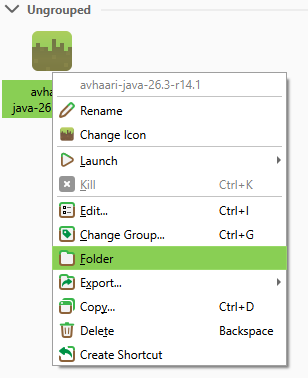
- In the opened folder, open
minecraft. Find themodsfolder shown below.
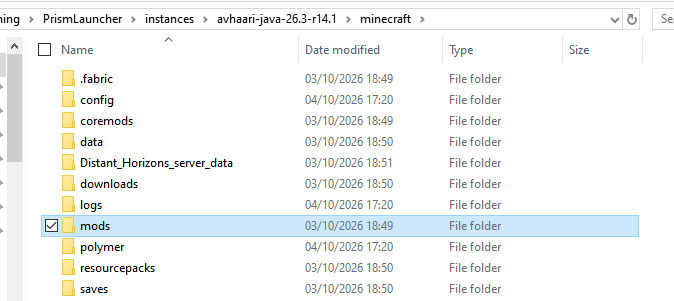
mods folder. Keep those files when updating.- If this instance has no AutoModpack, download Update an existing install from How to join and extract it directly into this
minecraftfolder. - Check that the result is
minecraft/mods/automodpack-…jar, notminecraft/mods/mods/…orminecraft/minecraft/…. - Launch the same Avhaari instance and try to join the server. If an update is needed, choose Download update on the Server update required screen. The attempted join ends while the pack downloads.
- Restart Minecraft when asked, then join again. Keep the backup until the server accepts the pack and your controls and maps still appear.
Older bushy-foliage files
Section titled “Older bushy-foliage files”The current pack does not include the old Avhaari bushy-foliage experiment. AutoModpack leaves personal resource packs alone, so an older avhaari-bushy-foliage-26.3.1.zip or .2.zip can remain in your folder. Disable it in Minecraft and move that named ZIP into your backup if you no longer want it; keep every unrelated resource pack.
What stays untouched
Section titled “What stays untouched”Do not overwrite, delete or move these player-owned paths during an ordinary mod update:
| Keep | Contains |
|---|---|
options.txt |
Controls, graphics, audio and other Minecraft settings |
config/ |
Mod settings |
xaero/, XaeroWorldMap/, XaeroWaypoints/ |
Xaero maps and waypoints; folder names vary by version |
Distant_Horizons_server_data/ |
Cached distant terrain for multiplayer |
saves/ |
Single-player worlds and their local data |
screenshots/ |
Screenshots |
servers.dat |
Saved multiplayer servers |
resourcepacks/, shaderpacks/ |
Personal resource packs and shaders; the updater does not manage them |
Prism’s Java path, memory limit and Java arguments belong to the instance outside the minecraft folder. Keeping the same instance preserves them too.
Using the same server address also keeps Xaero and Distant Horizons data associated with the same multiplayer server. Importing a fresh .mrpack creates a different instance and does not automatically transfer any of the paths above.
Other launchers
Section titled “Other launchers”Open the game folder of the Fabric installation you actually launch. Back it up, then extract the small existing-install updater into that game folder and follow the same join, download and restart flow. Keep all paths in What stays untouched.
Do not update individual bundled mods from a launcher catalogue. Avhaari tests and checks the complete set together.
If the update fails
Section titled “If the update fails”- Duplicate-mod or conflicting-version error: a local JAR duplicates an Avhaari-managed mod, or an older manual update left two versions active. Do not delete files at random; restore the backup and repeat the updater flow, or import the current 26.3-r19.3 into a clean Prism instance.
- No mods load: confirm you launched the Fabric instance and the JARs are directly inside
minecraft/mods. - Maps or controls look new: stop Minecraft and confirm you opened the same instance as before. Restore the backed-up personal folders rather than continuing to play in the wrong instance.
- The server requests another version: return to How to join and use the complete pack named by the message.
- The updater reports an error: keep the instance and share the exact error and its Minecraft log so the problem can be diagnosed.
Bedrock players do not use this Java update process.